Setup ATV 9 in FPT Playbox S400
Overview
Unlock your FPT Play Box by flashing it with an Android TV (ATV) ROM. This bypasses the default FPT interface, turning the device into a standard Android TV box that supports any internet provider, ad-free apps (like Smart YouTube), and seamless voice contro
Warning: Flashing incorrect ROMs can “brick” your FPT Play Box.
Prerequisites
- FPT Playbox S400+ 2019.
- Specs: Amlogic S905X SoC, 1GB RAM, 8GB eMMC storage.
- Cable USB A to USB A (male to male).
- Windows Computer (not accept Linux or MacOS).
- USB Burning Tool with version 2.1.7.0 or higher.
- Firmware image for FPT Playbox S400+ 2019 in description of this youtube video .
Steps to Install ATV 9
Step 1: Download & Install the Requirements
Amlogic USB Burning Tool
- Download the tool by access to this daivietpda.com article . Find the row “tool để chạy Amlogic+USB+Burning+Tool_v2.1.7.0.exe” in the description.
- Right-click the setup file .exe and select “Run as administrator”.
- Follow the installation prompts.
- Crucial Step: Midway through the installation, Windows will prompt you to install derivers (such as “WorldCup Device” or “Amlogic Driver”). Make sure you click Install / Trust for all driver prompts so your laptop can recognize the box’s raw hardware interface.
Step 2: Set Up the Burning Tool
- Right-click the Amlogic USB Burning Tool icon and select “Run as administrator”.
- Select Language: English.
- Go to File -> Import image and select the firmware image you downloaded earlier.
- Wait a few seconds for the tool to load the image. You should see a green checkmark next to the image name.
- On the right side of the tool, check the flashing settings:
- “Erase flash”: Select Normal erase.
- “Erase bootloader”: Checked (Yes).
Step 3: Connect the Box to Your Laptop
(Make sure the FPT Box power cord is completely UNPLUGGED before starting this sequence).
- Plug the USB A-to-A cable from the box into a USB port directly on your Windows laptop.
- Plug the HDMI cable from the box into the screen to easily see the progress of the flashing process.
- Open the box then press the icon “Home” in the remote multiple times during startup. You will see the FPT logo flash several times.
- Within 3 to 10 seconds, the Amlogic USB Burning Tool should detect the box and a new row will appear in the software displaying “Connect Succes”.
Step 4: Flashing the Firmware
- Press the “Start” button in the tool to begin flashing the firmware.
- The process will take a few minutes, and you will see a progress bar indicating the status.
- When the progress bar hits 100% and displays “Burning successfully”. Click the “Stop” button in the tool.
Step 5: First Boot
- Disconnect the USB cable from the box and your laptop.
- Plug the power cord back into the box and turn it on.
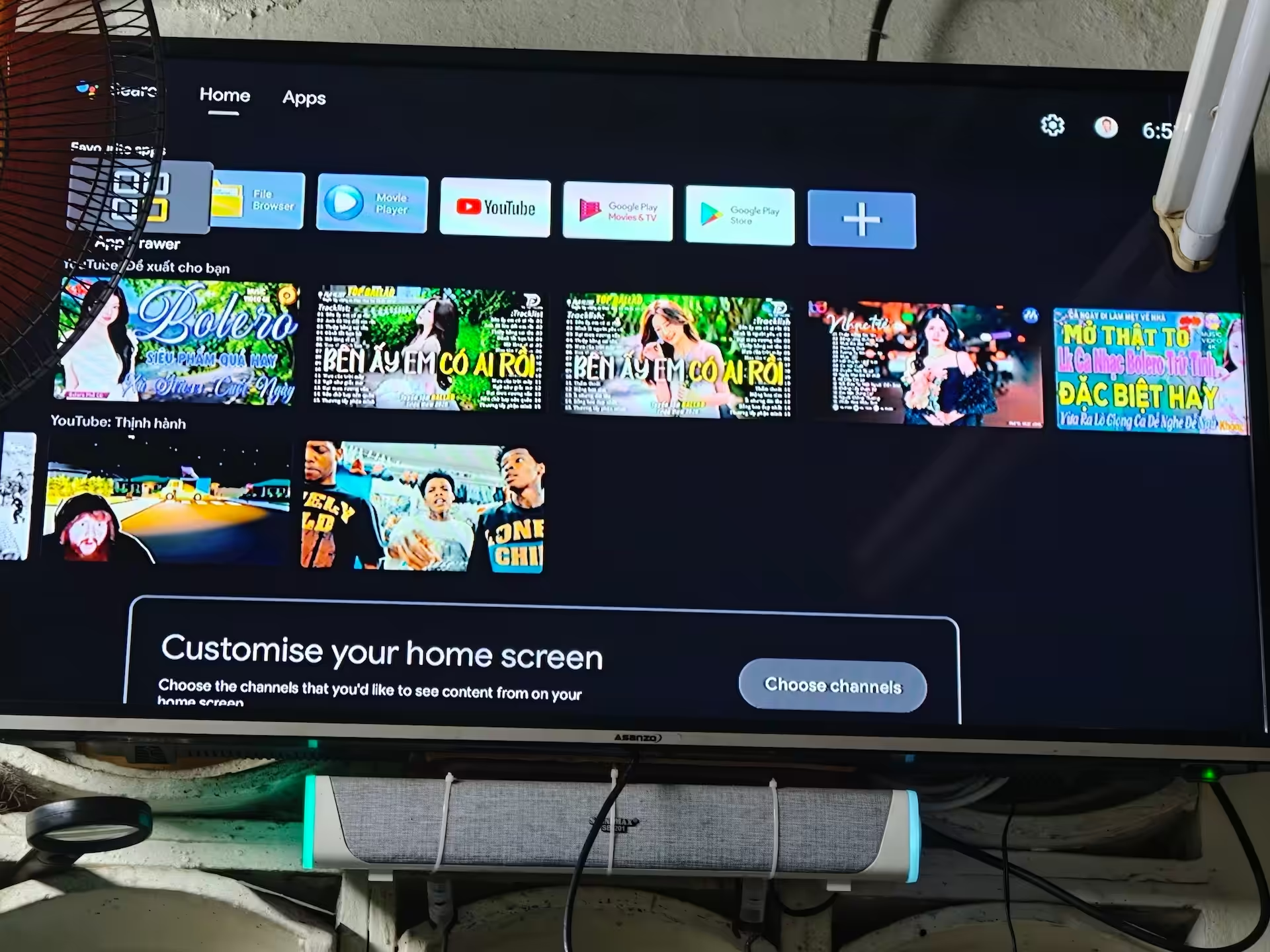
- The box will boot into ATV 9. The first boot after a fresh eMMC flash may take 3 to 5 minutes while the Android system rebuilds its initial caches. Once loaded, you will see the new Android TV setup screen.
- When the setup is complete, you will see the ATV 9 home screen.
Step 6: Some First Setup
- Setup Pair the Remote control with the box:
- Because currently the remote is not paired with the box, you will need to pair it manually.
- Connect a mouse to the box via USB or Bluetooth.
- Go to Settings -> Pair TV Remotes
- Press and hold the “OK” + “Volume -” button on the remote for 5 seconds until the LED light on the remote starts blinking.
- Then click “Pair” on the screen.
- Follow the on-screen instructions to complete the pairing process.
- If the pairing fails, repeat the steps above. You may need to try a few times before it works.
- Setup Wi-Fi:
- Go to Settings -> Network & Internet.
- Select your Wi-Fi network and enter the password to connect.
- Setup Login the Google Account:
- Go to the “Google Play Store” app on the home screen.
- Sign in with your Google account credentials.
- Setup Install Apps:
- Open the Google Play Store app.
- Scroll to update all apps to the latest version.
- Browse or search for apps you want to install.
- Select the app and click “Install”.-
Conclusion
You have successfully installed ATV 9 on your FPT Playbox S400 device with fully functional Wi-Fi & Bluetooth, Audio, Screen! You can now explore the features and capabilities of this smart TV operating system.
For further customization and software installation, refer to the Android TV documentation .
Additional Resources
- Tutorial video: Test Rom ( Frimware ) FPT Play Box + S400 ( 2019 ) AML S905X ATV 9
- Amlogic USB Burning Tool: https://usbburningtool.com/